
How to Create a Sleek "Go to Top" Button in Squarespace

Pin this post to Pinterest! ☝🏻
tutorial: install a “go to top” button IN SQUARESPACE
Ever scrolled all the way down a long page, only to realize you need to get back to the top? It’s annoying. A “Go to Top” button fixes that with one click, and it’s one of those small details that makes your whole site feel easier to use.
I always recommend putting your navigation links in the footer, but not everyone does. If that’s you, you especially need a “go to top” button so people can get back to your menu and keep exploring.
In this post, I’ll show you why it’s worth adding and how to install one yourself. There are lots of ways to style a “go to top” button, but I like this one because it’s simple and clean.
Here it is in action:
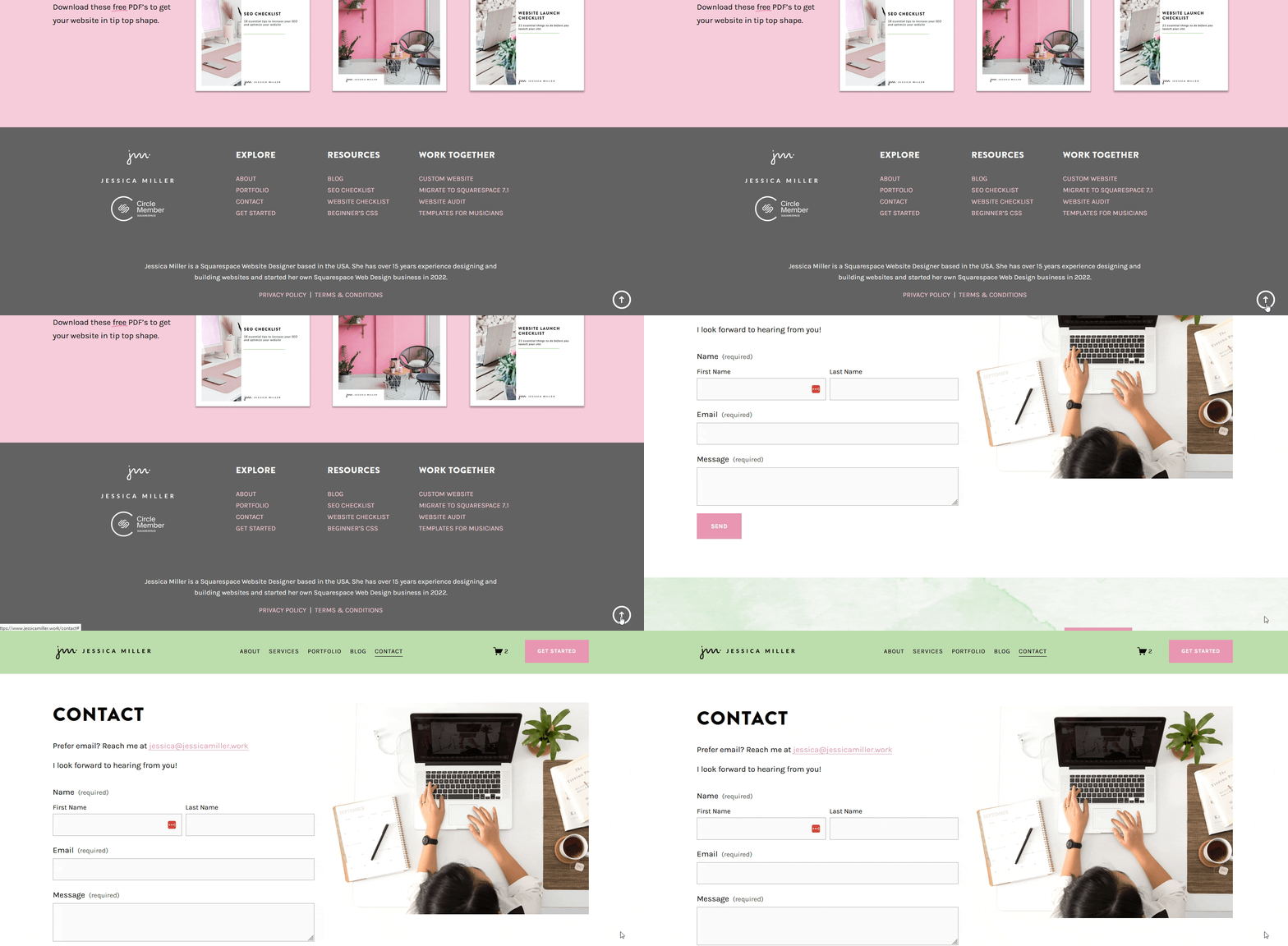
Couple of things to note about this button:
This button WILL work on a mobile device.
The button doesn't appear until you scroll closer to the bottom of the page.
WHY YOU NEED A "GO TO TOP" BUTTON
A "Go to Top" button might seem like a small detail, but it can make a big difference. Here are a few reasons why you should consider adding one to your website:
Enhances User Experience: Visitors can quickly navigate back to the top without scrolling, making their browsing experience smoother.
Improves Navigation: Especially useful for long pages, it helps users easily access the main navigation or header content.
Keeps Users Engaged: By improving navigation, you encourage visitors to explore more of your site, reducing bounce rates.
Ideal for Long-Scrolling Pages: For content-heavy websites, this button ensures users don’t feel lost or overwhelmed.
If you have a really long page, a go to top button works great alongside anchor links that jump people to specific sections. Or you can shorten the page in the first place by tucking extra content into an accordion block.
Indirectly, a "Go to Top" button can also benefit your SEO. Improved user experience and lower bounce rates signal to search engines that your site is user-friendly, which can positively impact your rankings.
Want more SEO tips? Grab my free SEO checklist 👇

HOW TO INSTALL A "GO TO TOP" BUTTON
There are 3 places we need to install code, but it’s just copy and paste, so you don’t need any coding knowledge to do this tutorial. If you’re curious what the code is actually doing, my beginner’s guide to CSS is a good place to start.
STEP 1: INSTALL THE CSS
Go to Website -> Pages -> Custom Code -> Custom CSS and paste this code:
(If you want your button to be a different color than white, change the “#fff” in all places to the color you prefer. Be sure to keep the semicolon after the hex code.)
//back to top button//
#back-to-top {
    position: fixed;
    bottom: 40px;
    right: 40px;
    width: 40px;
    height: 40px;
    background-color: transparent;
    border: 4px solid #fff;
    color: #fff;
    text-align: center;
    line-height: 40px;
    border-radius: 50%;
    opacity: 0;
    transition: opacity 0.3s, bottom 0.3s;
    z-index: 1000;
  text-decoration: none !important;
  -webkit-transform: rotate(-90deg);
-moz-transform: rotate(-90deg);
-o-transform: rotate(-90deg);
-ms-transform: rotate(-90deg);
transform: rotate(-90deg);
}

#back-to-top:hover {
    color: #fff;
}

#back-to-top.show {
    opacity: 1;
    bottom: 20px;
}
STEP 2: INSTALL THE HTML
Go to your footer and click Edit. Add a code block anywhere in the footer and paste this code:
<a href="#" id="back-to-top" title="Back to top">➜</a>
Don't forget to click save!
STEP 3: INSTALL THE JAVASCRIPT
Go to Website -> Pages -> Website Tools -> Code Injection, and paste this code in the FOOTER section:
<!-- Back to top code -->
<script>
window.addEventListener('scroll', function() {
    var backToTop = document.getElementById('back-to-top');
    if (window.pageYOffset > 300) {
        backToTop.classList.add('show');
    } else {
        backToTop.classList.remove('show');
    }
});
  </script>
<!-- End back to top code -->
CONCLUSION
A “Go to Top” button is a small addition that makes your site easier to get around, especially on long pages. Add it, scroll down, and give it a test click.
Building out a long FAQ page? A sticky table of contents is another great way to help people find what they need. And if you’re still getting the hang of laying out pages, my guide to fluid engine walks you through it.
If you’d rather have someone else handle the details, let’s talk.







How to automatically remove items that are sold out from your ecommerce store. Only display items that are actually in stock so that customers know what to choose from.