
Pin this post to Pinterest! ☝🏻
How to Add a Sticky Block For a Long FAQ Page (Minimal CSS)
Most FAQ pages are a wall of text that nobody reads. Here's how to design one that's actually easy to use, organized by category, and doesn't require scrolling through 40 questions to find the right one.
Squarespace accordion blocks are great (specifically for FAQ's) because they allow the ability to hide the answer to a question so that only the question shows. This not only saves a lot of space, but it allows you to find the question you're looking for quickly.
Which is great, unless you have a TON of questions in your FAQ. Then you have another problem on your hands.
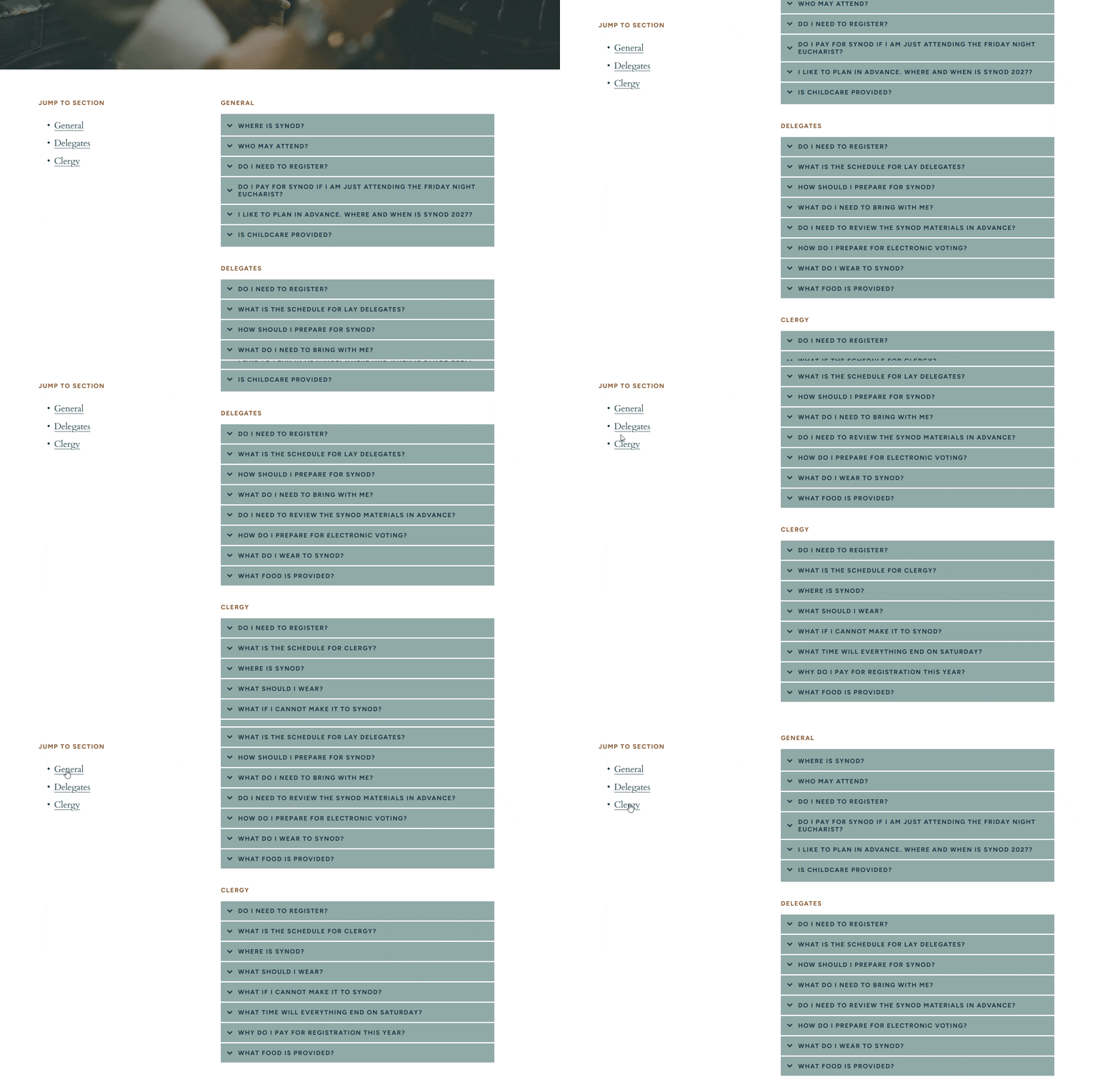
I recently had a client that had so many FAQ's for 3 different audiences that she split them up into 3 pages. This is not really a great solution... So instead, I combined them all onto one page with the accordion blocks on the right side of the page, and a table of contents on the left side of the page. Then I used anchor links so that the table of contents allowed users to jump to different sections in the FAQ.
But the even best perk of this design was using the sticky feature in Squarespace. This is a new design feature in Squarespace and can be achieved with the click of one button (no code required). I made the table of contents block 'sticky', meaning it sticks to the top of the page as the user scrolls down the page. This means that no matter what question someone is reading, they still have the ability to jump to another FAQ without having to scroll back up the page.
The only CSS in this tutorial is creating the anchor links for the table of contents - which I'll show you later. It's very basic CSS and an easy copy/paste.
In short, I'm going to show you how to create:
Left column: sticky table of contents with anchor links
Right column: accordion blocks organized by category
As the user scrolls, the left table of contents stays fixed so they can always jump to any section
Here's how it looks in action:
Step 1: Create your accordion blocks
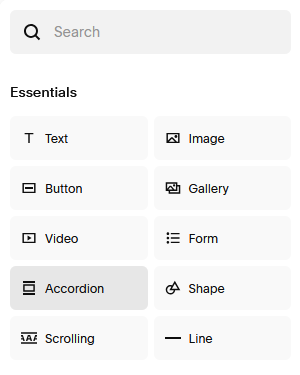
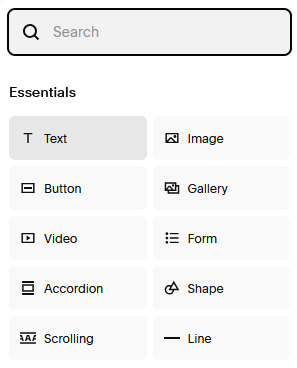
Click Add Block in your section, then click the Accordion Block. Enter the questions and answers for that particular accordion block. Stylize your block however you choose. I have a blog post on 3 ways to design an accordion block (personally I use #2 a lot).
Step 2: Duplicate your accordion blocks by category
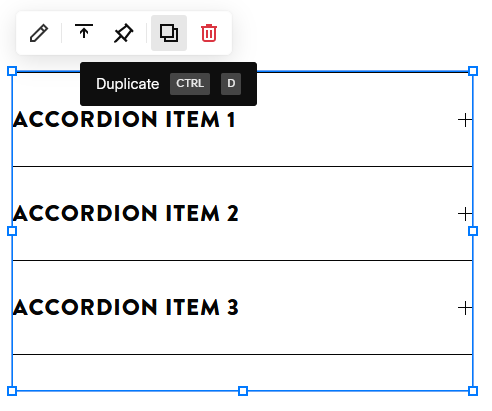
Once your first accordion block is built, duplicate it. You can do this by either hovering over the block and clicking the icon of the 2 squares (next to the red trash can) or use the keyboard shortcut - Ctrl D.
STEP 3: FILL OUT THE REMAINING ACCORDION BLOCKS
Fill in the questions/answers for your second accordion block. Continue steps 2 and 3 until you have all of the accordion blocks that you need.
STEP 4: ADD TEXT BLOCKS TO TITLE EACH ACCORDION BLOCK
Click Add Block then click the Text Block. You will need a text block for each section. Place this above the accordion block so that each accordion has a title.
At this point your page should be looking like this -
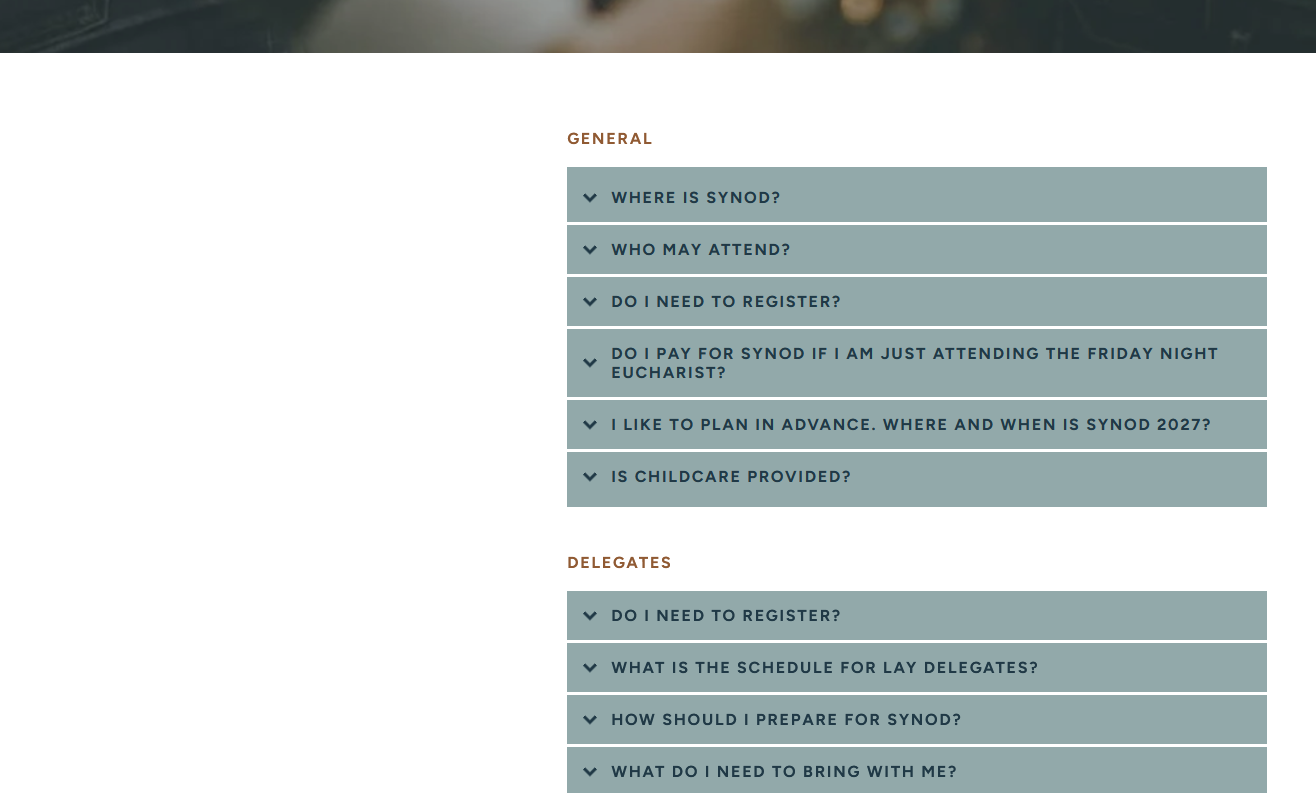
We still need to add the table of contents and the code blocks to create the functionality.
STEP 5: ADD THE CODE BLOCKS
Go to Add Block then Code Block
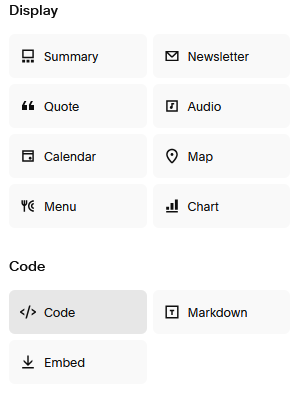
These blocks are part of the anchor links, which tell the table of contents where to jump to.
Here is the code you'll need:
<div id="NAME"></div>
Simple, right?
Copy that code, then paste it in the code block.
Rename "NAME" to whatever your category is called. Be sure your word has quotation marks around it (otherwise it won't work).
Repeat these steps until every accordion block has a code block.
TIP: I like to place my code block one line up from the title. When someone clicks the table of contents, the page is going to jump to wherever the code block is, so by putting it one line ABOVE the title, it creates some space at the top of the page for the text to breathe.
Mine looks like this -
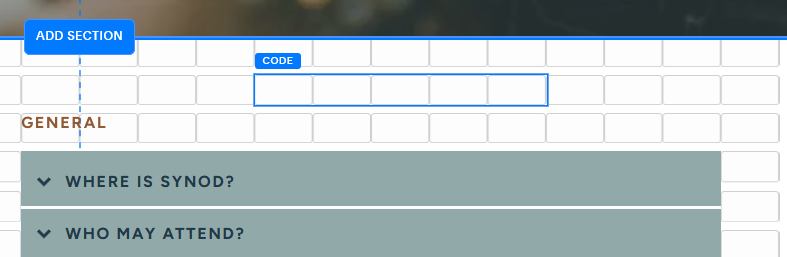
It doesn't matter how long/wide your code block is. It just needs to be in that order vertically (code -> heading -> accordion).
STEP 6: CREATE THE TABLE OF CONTENTS
Start by going to Add Block then click the Text Block.
Type in the text for your Table of Contents. For mine, I put “Jump to Section” for the title, then put the categories in a bullet point list.

STEP 7: HYPERLINK THE TABLE OF CONTENTS
Now we're going to create the anchor links by connecting our table of contents to the code blocks - this is what makes the whole feature work.
Highlight the first item in your table of contents and click the hyperlink icon. Your URL will follow this format -
/page-name#category
What this looks like for me is:
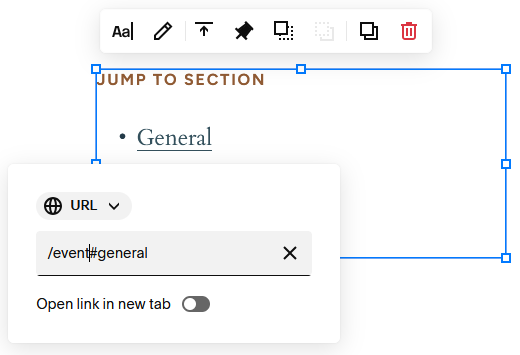
My page URL is called Event (like mydomain.com/event) and General is the name that I put in my code block above the accordion block. You do not need to put your actual domain in the URL - just start the URL with the page name.
Do these steps for all of the items in your table of contents.
STEP 7: MAKE THE TABLE OF CONTENTS STICKY
Now for the fun part!
Click on the text block with the table of contents once, then click the thumbtack. I have mine pinned to the top with an offset of 60px. That means that it will stick to the top of the page, and there will be a 60px gap at the top so that the text isn't pressed right up against the top of the page.
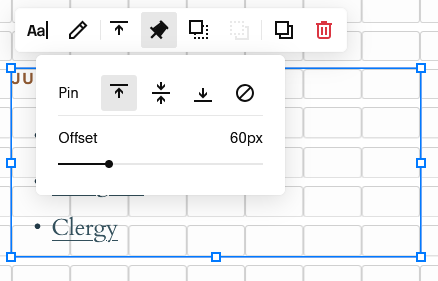
STEP 8: ADAPT FOR MOBILE
For my site, I disabled the sticky feature on mobile. To do this, go into the mobile preview, click the thumbtack, then click the circle with the line through it (on the right) to turn it off. This only disables it on mobile - it won't affect the desktop version.
If you do you want to use this feature on mobile, you will need to add some code so that when the anchor link jumps to the accordion block, the table of contents isn't sitting on top of it (you won't be able to see the top of the accordion block without using some code to push it down).
Even if you remove the sticky function on mobile, the anchor links will still work.
STEP 9: TEST IT OUT!
At this point you should have everything set up and working.
If something isn't working, start here:
Double check that all of the code is exactly as it is above (especially that you have quotation marks around your category name)
The name/title for the accordion block must be the same for the code block and the URL - this is how it knows what to match to.
Be sure that the URL in the table of contents follows the correct formatting
Make sure the pin is turned on for your table of contents on desktop.
A well-designed Squarespace FAQ page makes it easy for visitors to find exactly what they're looking for without being frustrated, and this sticky table of contents and accordion block setup is one of the cleanest ways to do it. It takes a little more time to build than a basic FAQ page, but the result is something that actually works for your visitors instead of making them hunt for answers.
If you've gotten this far and you're realizing your site has a few more layers than you want to deal with yourself, that's exactly what I'm here for. Let's talk about your project.
*This post may contain affiliate links, so I may earn a small commission when you make a purchase through links on this site at no additional cost to you.







How to automatically remove items that are sold out from your ecommerce store. Only display items that are actually in stock so that customers know what to choose from.